
Install Advantage
Keep the Windows store computer awake
Prevent sleep from pausing the Advantage Agent while allowing the display and user session to behave normally.
Purpose
The Windows computer running the Advantage Agent must stay powered on, awake, and connected to the store network. The screen may turn off, and a user may sign out: the Agent runs as a Windows service and continues without an interactive desktop session.
Sleep, hibernation, shutdown, loss of power, or loss of the approved network connection pauses collection until Windows and the Agent service are running again.
Windows 11
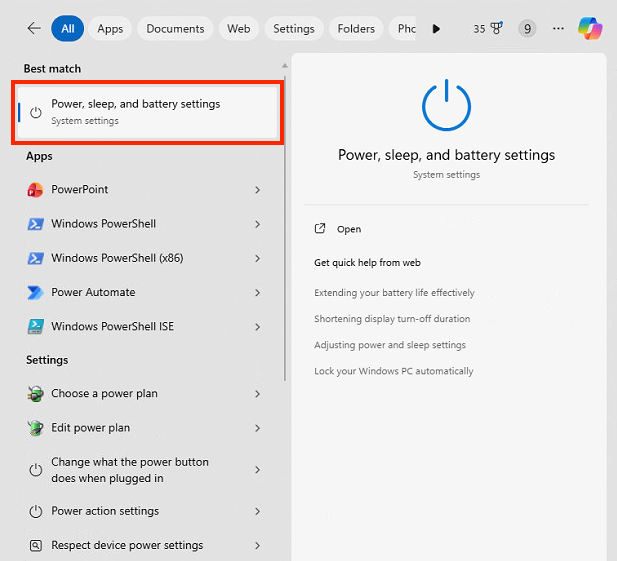
- Select Search on the taskbar and type Power.
- Open Power, sleep, and battery settings.
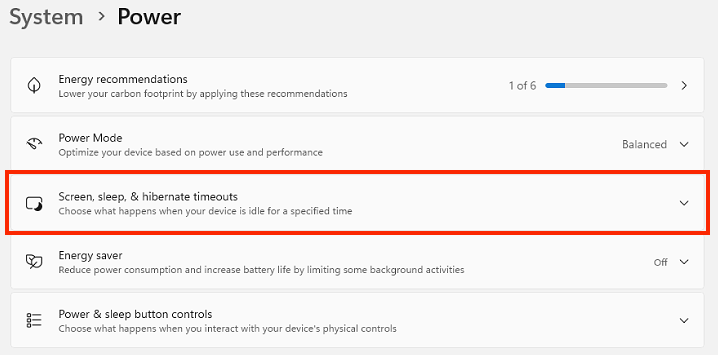
- Expand Screen, sleep, & hibernate timeouts.
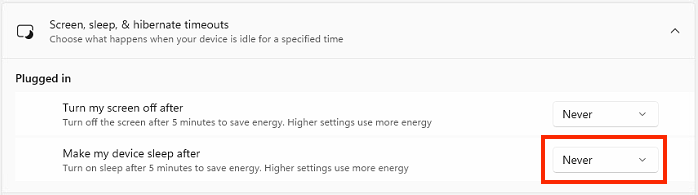
- Under Plugged in, set Make my device sleep after to Never.
- On a laptop, also set the battery sleep option to Never if the computer is expected to keep collecting while briefly unplugged.
Windows 10
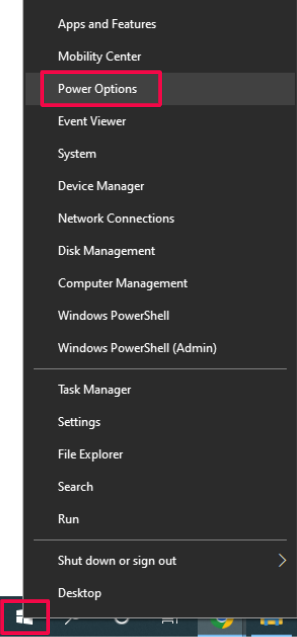
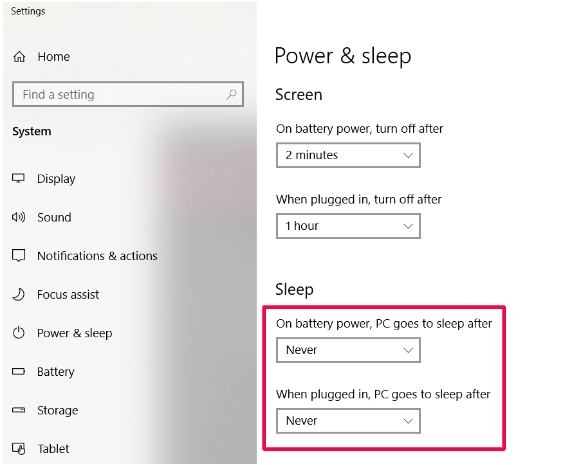
- Right-click the Windows icon and select Power Options.
- Under Sleep, set When plugged in, PC goes to sleep after to Never.
- On a laptop, set On battery power, PC goes to sleep after to Never when continuous collection is required away from power.
Windows 7 — legacy only
Windows 7 is no longer a supported modern Windows platform. These steps are retained only for a legacy store computer already under an approved replacement or upgrade plan. Do not deploy a new Advantage installation to Windows 7 without an explicit security review.
- Select the Windows icon and search for power sleep.
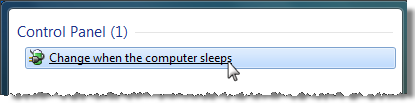
- Open Change when the computer sleeps.
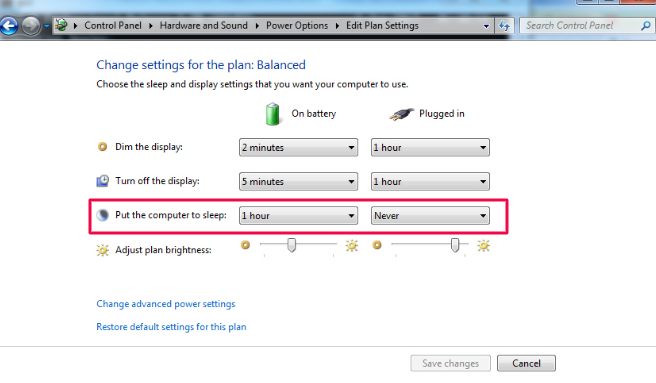
- Set Put the computer to sleep to Never under Plugged in.
- On a laptop that must collect while unplugged, set the battery choice to Never as well.
- Select Save changes.
Laptop lid setting
Closing a laptop lid normally puts Windows to sleep. For the store laptop while it is plugged in:
- Open Control Panel → Hardware and Sound → Power Options.
- Select Choose what closing the lid does.
- Set When I close the lid to Do nothing under Plugged in.
- Select Save changes.
Keep the laptop on a stable, ventilated surface. “Do nothing” does not make it safe to place a running laptop inside a drawer or closed cabinet.
For a visual walkthrough, see change what happens when a Windows laptop lid closes.
What may turn off
- Display: may turn off after a normal timeout.
- User session: a staff member may lock Windows or sign out.
- Advantage Agent window: does not need to stay open; the Windows service performs collection.
- Computer sleep or hibernation: must remain off.
- Power and network: must remain connected and stable.
Final check
After saving the power settings, confirm:
- the computer remains awake for at least one normal display-timeout cycle;
- the display can turn off without the computer sleeping;
- the laptop remains awake when its lid is closed while plugged in, if applicable;
- Windows can be locked or signed out while the Advantage Agent service remains Running and Automatic; and
- fresh POS data continues to reach Advantage after the screen is off or the user is signed out.
If collection stops today, contact Advantage Support and review the Agent service, power, and exact network readiness. Do not use an unreviewed PowerShell workaround. The future guided Setup Assistant will bring these checks into one graphical recovery flow.