
Install Advantage
Install the Advantage Agent and Shift Console
Install and verify the Advantage Agent and Shift Console during an attended store onboarding appointment.
Purpose
Use this guide with an Advantage onboarding specialist after the store computer can reach the POS and the POS configuration is ready.
Today, installation is an attended appointment. Advantage reviews the store plan, verifies the approved software, and walks an authorized person through the normal Windows screens. Windows may ask that person to approve an administrator prompt. Store staff should not open PowerShell or Command Prompt, scan the store network, run probes, or move scripts between computers.
Before the appointment
Advantage prepares and reviews the store plan before installation. It includes:
- the store name, site ID, state, timezone, and declared POS vendor;
- the exact Verifone Commander address or Gilbarco Passport XMLGateway path;
- the approved Agent and Shift Console versions, Windows signers, and SHA-256 hashes;
- provider-approved MNSP details when the Windows network needs an attended change; and
- a locked POS push state, with Passport local apply kept off.
The store plan does not contain a POS password, activation code, API key, or service-role key.
Have the approved Windows computer ready. An authorized person who can approve a Windows administrator prompt should be available for the appointment.
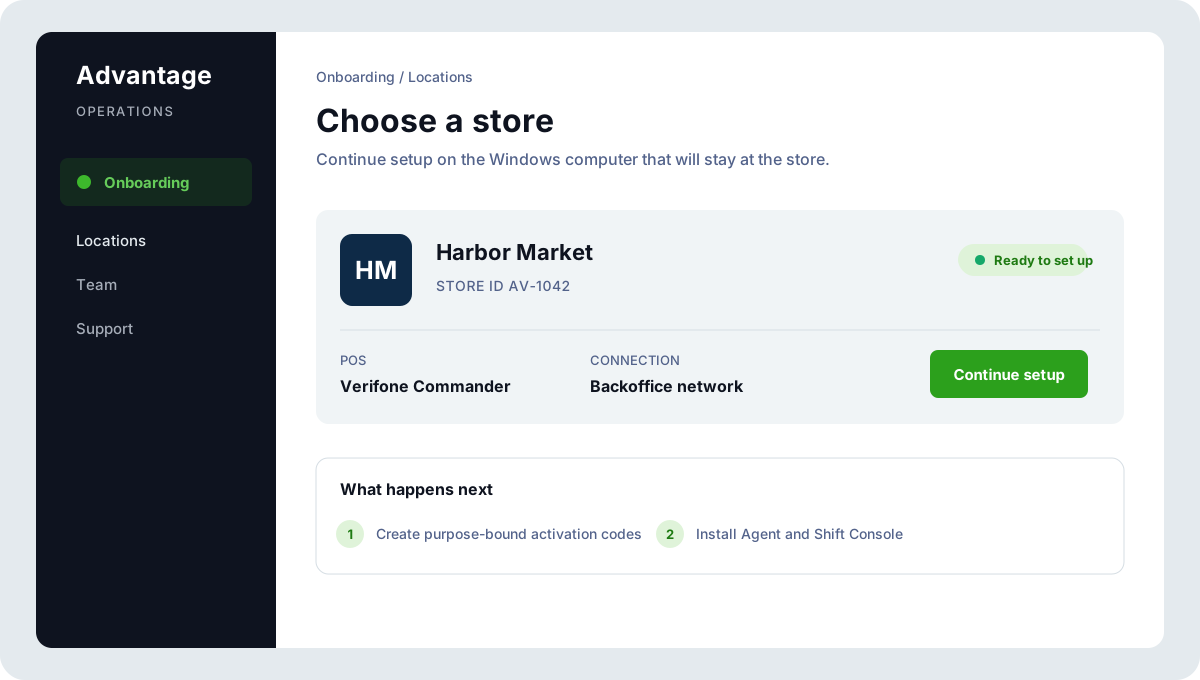
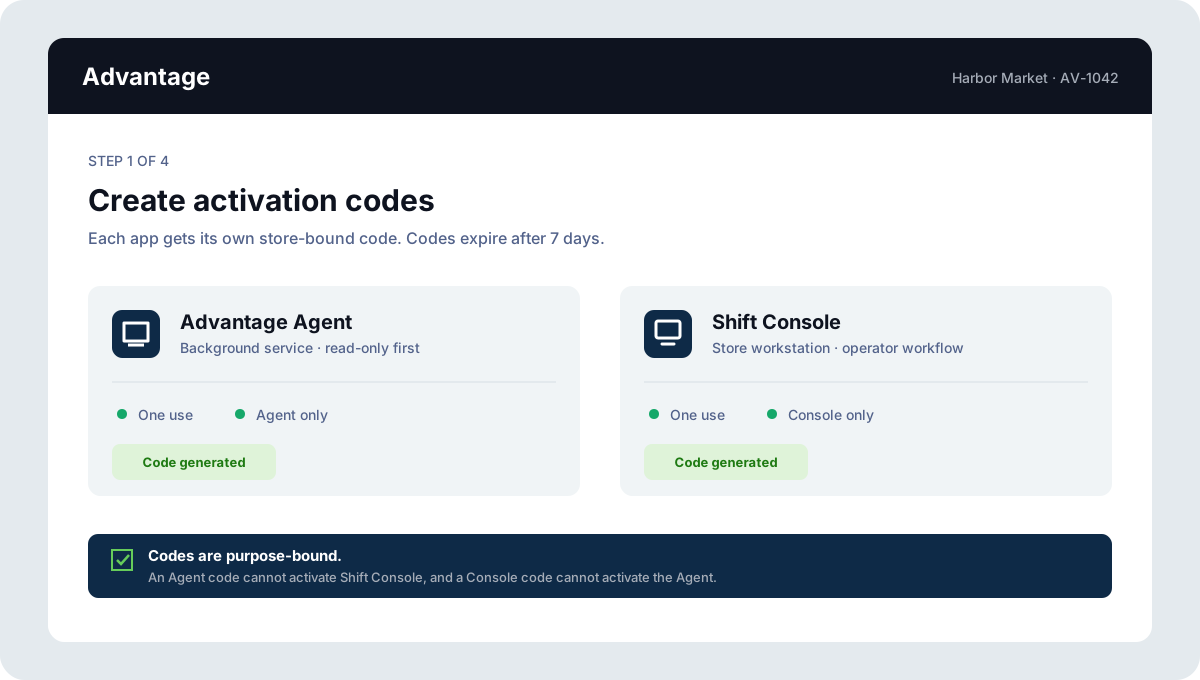
Step 1: Create two activation codes
During the appointment, Advantage creates one activation code for the Advantage Agent and a different code for the Shift Console. Each code is:
- bound to this store;
- limited to one application;
- single-use; and
- valid for seven days.
An Agent code cannot activate Shift Console, and a Shift Console code cannot activate the Agent. The store identity comes from the code, so staff do not choose a store from a list.
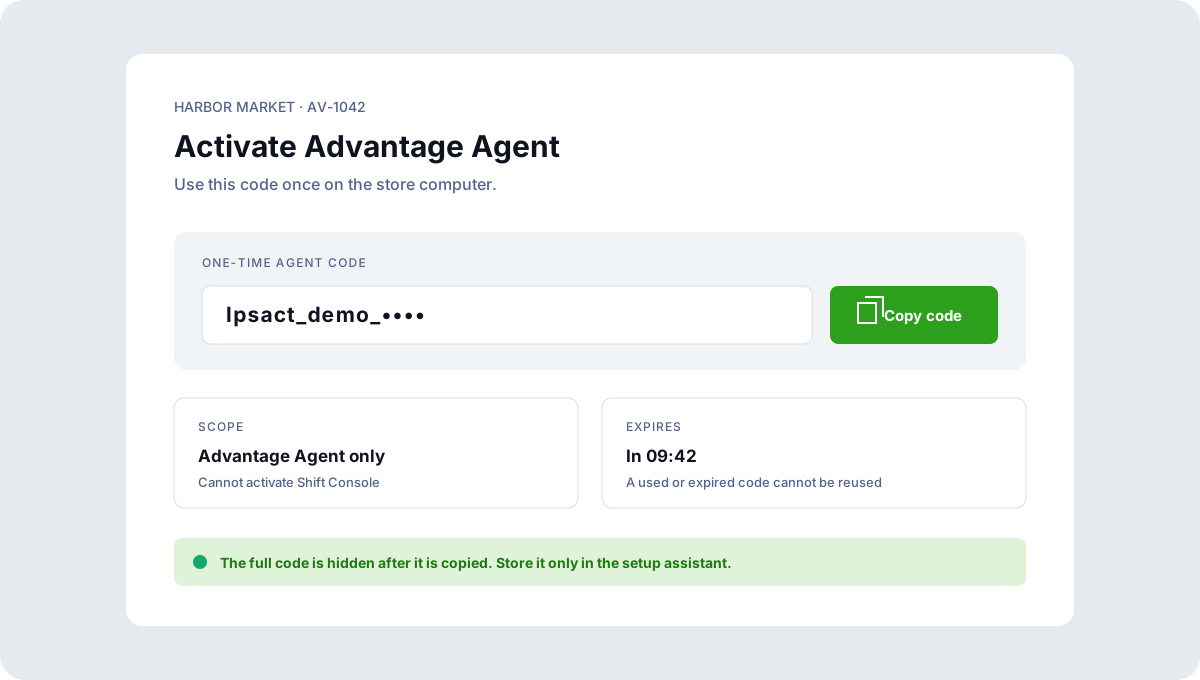
Copy each code only when the corresponding installer is ready on the approved store computer. Do not put a code in documentation, chat, a ticket, a command line, or the store plan.
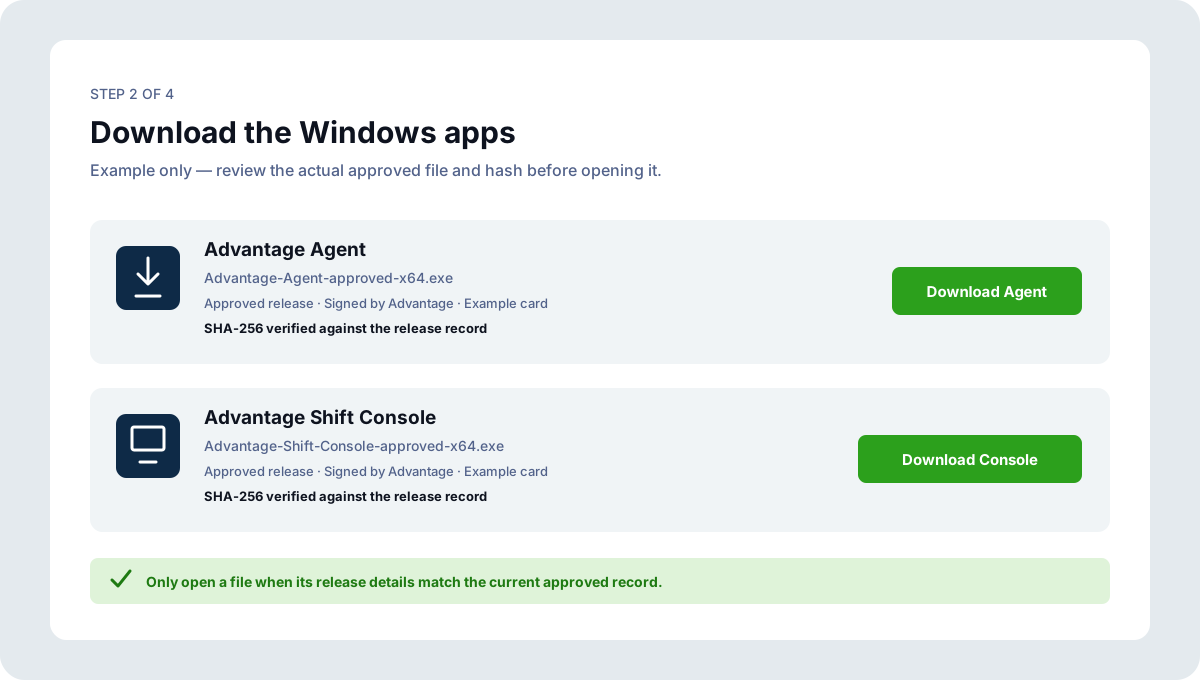
Step 2: Verify and install both applications
Advantage confirms the approved filename, version, Windows signer, and SHA-256 hash before either installer opens. Do not use an installer from an email attachment, chat upload, shared drive, or any location that is not part of the reviewed appointment.
Install the applications in this order:
- Install the Advantage Agent as a Windows service and redeem the Agent activation code.
- Install Shift Console for the currently signed-in store user and redeem the Shift Console activation code.
The Agent service continues collecting when a user signs out. Shift Console belongs to the current Windows user. They are separate applications, so each has its own activation and verification result.
Windows may show its standard administrator consent screen. The onboarding specialist explains the exact change before the authorized person approves it. Store staff should not be asked to type a command or perform a broad network test.
Step 3: Connect the Agent to the reviewed POS endpoint
Advantage tests only the exact POS endpoint in the reviewed store plan. It does not search the subnet, try the other POS brand, guess a router, or use nearby addresses to infer store settings.
Verifone Commander
Advantage validates the exact reviewed Commander address. An owner-approved existing integration login is preferred when it provides every required Agent function. If a dedicated advantage_agent login is needed, it receives only the reviewed least-privilege functions. It must not use Select All or a fixed shared password.
Gilbarco Passport
Advantage validates the exact reviewed \\host\XMLGateway path. Passport local push apply remains off, along with automatic data re-requests and VCD refresh requests. A standard BackOffice login may work, but the store or provider can change it. Enter the current credential only in the masked field during the attended appointment.
POS and service secrets stay out of URLs, command arguments, logs, support reports, and browser storage. Temporary secret material is restricted and removed immediately after use. The Agent seals the credential it needs with Windows DPAPI for its service identity.
What the guided setup will automate
The planned Setup Assistant will use ordinary Windows screens to carry out the reviewed store plan. It will:
- verify the approved filename, version, signer, and SHA-256 hash;
- confirm the declared POS and MNSP;
- test only the exact reviewed endpoint;
- explain any provider-approved Windows network change before asking for normal Windows elevation;
- record the existing adapter and route state;
- apply only the reviewed store facts;
- restore the prior Windows state if endpoint validation fails; and
- protect secrets with the same masked-entry, temporary-storage, and DPAPI safeguards used by the Agent.
It will not scan the subnet, test another POS brand, guess network values, or ask the operator to run a command.
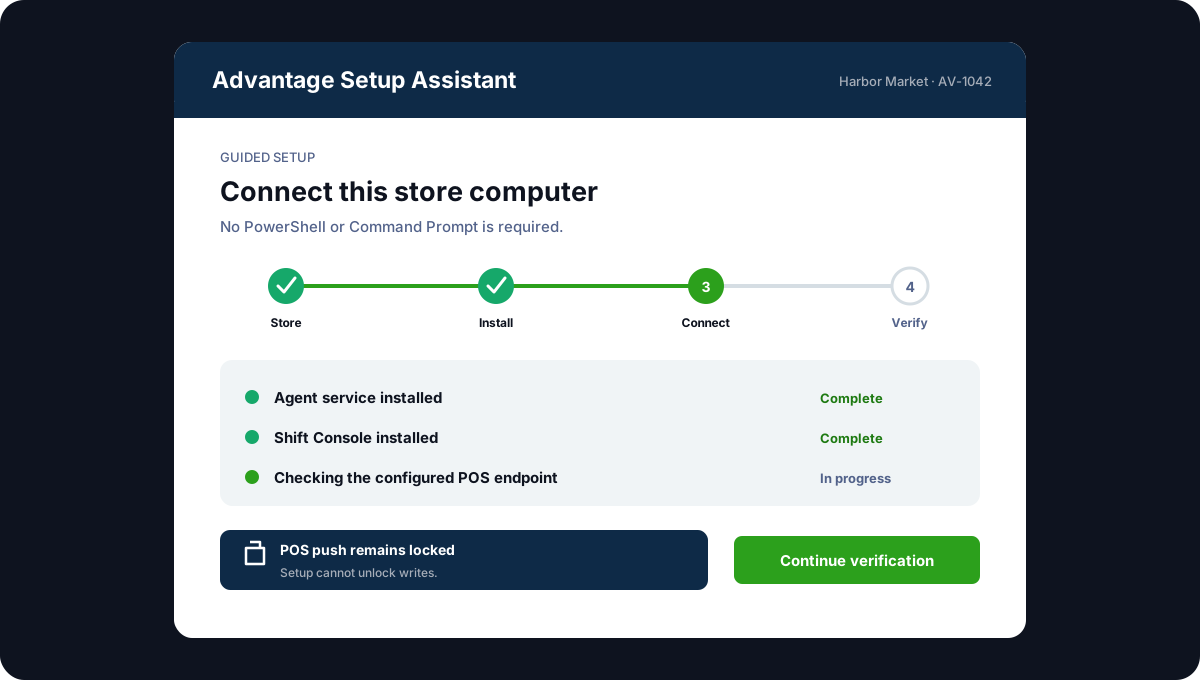
Step 4: Verify each readiness state
Installation is not one green check. Advantage verifies these states separately:
- Physical connection verified
- POS endpoint verified
- Agent installed and activated
- Fresh POS data observed in Advantage
- Shift Console installed and activated
- Store read-ready
- Entity-class push-ready — evaluated later, one write class at a time
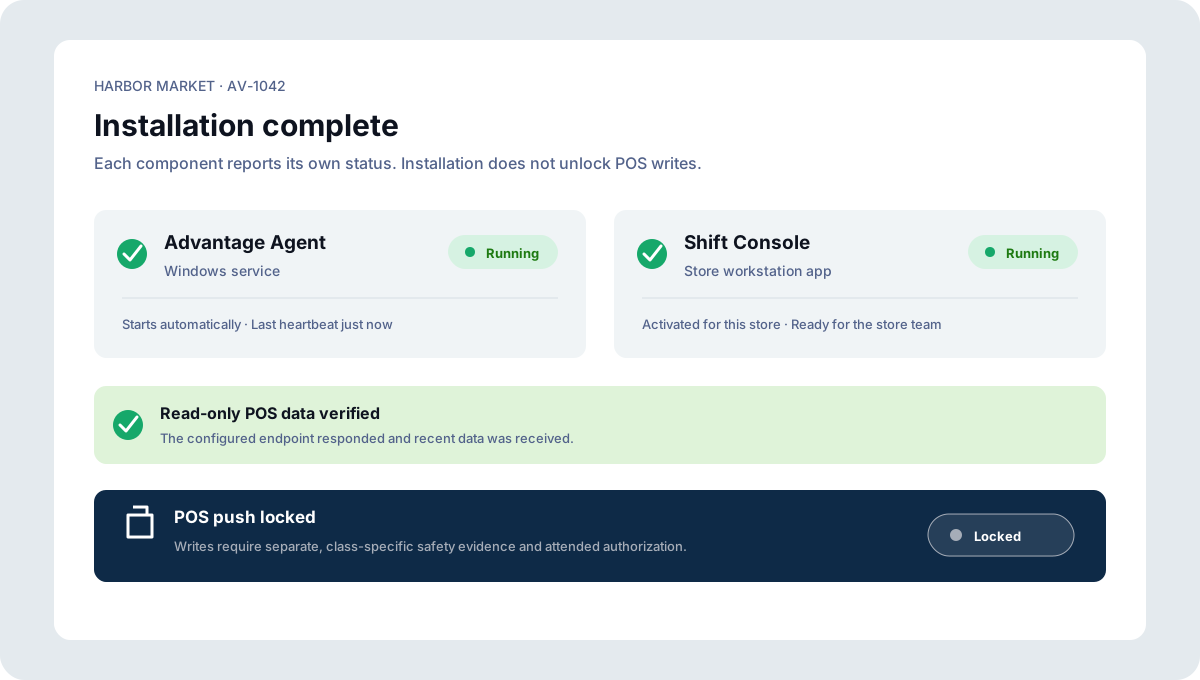
The Agent must report a running Windows service, clean recent logs, a fresh cloud heartbeat, and fresh inbound POS data. Shift Console must report its own store-bound activation. If a check fails, Advantage identifies that state and keeps every already proven state available for a safe retry.
Push remains a separate gate
The cloud store lock stays on after installation, and Passport local apply stays off. Price, item, department, deal, and fuel changes each require their own evidence, readback, attended canary, restoration proof, and authorization. Completing onboarding does not unlock writes.
Final computer setting
After the Agent is verified, follow Keep the Windows store computer awake. The display may turn off and staff may sign out, but the computer must remain powered, awake, and connected so the Agent service can continue collecting.