
Configure the POS
Configure a Verifone POS for Advantage
Prepare a Commander-served Verifone site with a validated, least-privilege credential for the Advantage Agent.
Purpose
Use this guide after the store computer can reach the Verifone Configuration Client. Advantage currently supports Commander-served Verifone sites. A Ruby, RubyCi, Topaz, Carbon, or C18 register name by itself does not prove compatibility; the Commander Configuration Client and CGILink endpoint must be present.
This step prepares the POS credential that the Advantage Agent uses. It does not install software on a register, change recorded sales, or unlock POS writes.
Before you begin
Have the store owner or an authorized Verifone administrator available. If Commander requires a one-time password for Security or user administration, someone at the register may need to generate or read that OTP. Advantage never attempts to bypass it.
Prefer an existing, approved integration user when it already has the exact Agent functions below. During the current attended setup, authorized Advantage support validates that login and function list without reading or changing Commander user configuration. The future graphical Setup Assistant will perform the same deterministic check. A dedicated account is a fallback when store policy requires credential isolation or the existing login is missing required access.
Never reuse a cashier login, a technician’s personal login, or another vendor’s integration credential. Never change or disable a vendor login as part of Advantage onboarding.
Step 1: Open the Commander Configuration Client
On the approved store computer, open the reviewed Commander address. The standard address is:
https://192.168.31.11/ConfigClient.html
If the site uses a documented override, use that exact address. Do not scan the network or try nearby addresses.
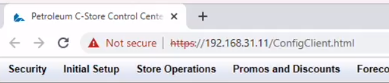
Sign in with the store owner’s authorized administrative account. A local certificate warning may appear for the exact reviewed Commander address; confirm the address before continuing.
Step 2: Review the integration user
Open Security → Manage Users.
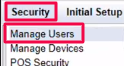
If the store already has an approved integration user, provide that username and password only through the current attended installer’s masked secret prompt. The setup must verify every required function before sealing the credential for the Windows service. It does not change that user’s password or roles.
If validation succeeds, skip to Verify the result. If validation reports a missing function, do not broaden the user’s role casually. Use the dedicated account path below or involve the store’s Verifone provider.
Step 3: Create a dedicated account only when needed
The dedicated username is advantage_agent, with a dedicated role named AdvantageAgent. The bootstrap administrator needs uuseradmin only for the one additive creation step.
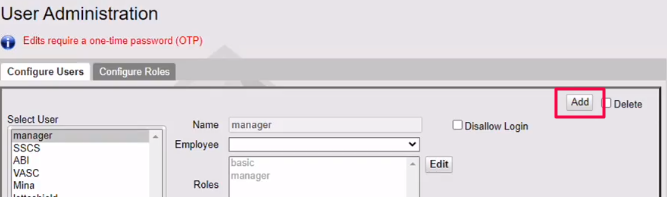
The current reviewed onboarding flow generates a unique random credential in memory for this store, submits it through the guarded setup path, verifies it, and seals it for the Agent service. The future graphical Setup Assistant will preserve this behavior. Do not use a fixed password. Do not paste the credential into documentation, chat, tickets, browser storage, command history, or an installer argument.
The source article included a fourth screenshot with a shared, fixed password and an over-broad role workflow. It was deliberately not copied. The safe credential screen is rebuilt above as a field checklist so no reusable secret appears in this Help Center.
Assign the exact Advantage role
Grant the following CGILink commands to AdvantageAgent. These are the reviewed Agent runtime functions—not every function shown in Commander.
| Function group | Exact command tokens |
|---|---|
| Session baseline | validate, releaseCredential, crefreshcfg |
| Transactions and periods | vtlogpdlist, vtransset, vtranssetz, vreportpdlist, vrubyrept |
| Controller and diagnostics | vAppInfo, vposscreencfg |
| Fuel reads | vfuelcfg, vfuelprices, vfueltotals |
| Store configuration reads | vregistercfg, vrestrictionscfg, vbluelawcfg |
| Catalog and status reads | vPLUs, vMaintenance, vmanagedcfgstatus |
| Guarded write paths | uPLUs, uMaintenance, ufuelprices, umanagedcfg |
| Legacy compatibility, optional when absent | vdepartmentcfg, vplucfg, umanagedcfgstatus |
The guarded write commands do not make the store push-live. Advantage’s store-level push lock remains authoritative until reviewed evidence is complete.
Never choose Select All. Do not grant vuseradmin or uuseradmin to advantage_agent; those are user-administration permissions and are not Agent runtime access. Do not add unrelated Security, reboot, or register-administration permissions.
Check OTP compatibility
Commander marks OTP requirements per function. Every required unattended function must report OTPRequired=false. If any required function is OTP-gated, stop and ask the Verifone provider to review that function. An OTP delivered out of band cannot be replayed by the Agent and must not be worked around.
Verify the result
Before leaving the store:
- Have the attended onboarding flow sign in with the selected user and validate the exact required function list.
- Confirm no existing Commander user, password, or role changed.
- Confirm the credential was sealed for the Advantage Agent service and is no longer displayed.
- Record the exact reviewed Commander address—not a guessed subnet address.
- Verify the POS clock and business date are correct. Do not change them without the store’s Verifone provider.
- Confirm POS push remains locked while read-only onboarding completes.
If validation fails, capture the missing function names and contact Advantage Support. Do not compensate by assigning an administrator or Select All role.