Help centerConfigure the POS
Configure a Verifone POS for Advantage
How Advantage gets its own login on a Commander-served Verifone register, and what to do when the register asks for a one-time code.

On this page
Purpose
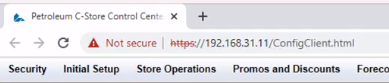
Advantage reads a Verifone store through the register’s own back office, the Commander Configuration Client. It supports Commander-served Verifone sites. A Ruby, RubyCi, Topaz, Carbon or C18 register name on its own does not prove that; the Configuration Client must open at the store. A legacy Sapphire controller is not supported.
Advantage uses its own login on the register, never a cashier’s, a technician’s or another company’s. The Advantage installer adds that login for you; this page explains what it adds and the one case where someone at the register has to help.
Before you begin
- The store computer can open the Configuration Client: see How to check if you have a backoffice connection.
- Someone who knows the register’s manager login is at the store. It is typed once on the store computer during the install. It is never shown, sent anywhere or kept.
What the installer adds to the register
When the installer asks for a login, type the register’s manager login. The installer then adds one login and one role, and changes nothing else:
Every other login on the register, including the store’s and any other back office’s, stays exactly as it was. Recorded sales are never changed by adding a login.
The functions the Advantage role needs
These are the register functions Advantage uses to read sales and, when the store sends changes from Advantage, to update prices and items.
| What it is for | Functions |
|---|---|
| Shifts, days and sales | vtlogpdlist, vtransset, vtranssetz, vreportpdlist, vrubyrept |
| Register details | vAppInfo, vposscreencfg, vregistercfg, vrestrictionscfg, vbluelawcfg, vpaymentcfg |
| Fuel | vfuelcfg, vfuelprices, vfueltotals |
| Items and departments | vPLUs, vplucfg, vMaintenance, vdepartmentcfg |
| Sending changes to the register | uPLUs, uMaintenance, ufuelprices, umanagedcfg, vmanagedcfgstatus, umanagedcfgstatus |
| Keeping its own password current | changepasswd |
Never choose Select All for this role, and never give it vuseradmin or uuseradmin: those manage other users, and Advantage does not need them.
When the register asks for a one-time code
Some Commander registers ask for a one-time code before anyone can add a login. The installer then stops and says so. In that case:
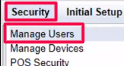
- At the store computer, open the Configuration Client and go to Security → Manage Users.
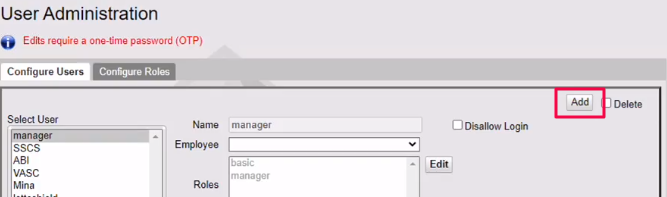
- Using the one-time code the register shows, add a role named
AdvantageAgentwith the functions above, then the loginadvantage_agentwith that role and a password of 7 to 40 characters. - Run the installer again and type
advantage_agentand that password when it asks for a login.
The installer then uses that login as typed, and Advantage keeps its password current from then on.
Check the result
- The installer finishes by waiting for the register’s first read and says when sales flow to Advantage. Send your Advantage contact a photo of that screen.
- The register’s clock and business date are right. If they are not, ask the store’s Verifone provider; do not change them yourself.
If a line starts with STOP, take a photo of the screen and send it to Advantage support. Never work around it by giving the role Select All or an administrator role.
Read next
Establish the connection
How to check if you have a backoffice connection
Test the exact standard Verifone Commander or Gilbarco Passport endpoint from the Windows computer that will run Advantage.
Install Advantage
Install Advantage on the store computers
How the Advantage store program and the Terminal are installed, what to type, and how to tell it worked.
Install Advantage
Keep the Windows store computer awake
Prevent sleep from pausing the Advantage Agent while allowing the display and user session to behave normally.